Pokemon Infinite Fusion Android – Download
Pokémon Infinite Fusion is officially developed for the Windows platform, but it can also be played on Android devices using JoiPlay. At present, the latest available Android-compatible version of the game is v6.7.
Pokemon Infinite Fusion Android
Follow the Guide below for the installation:
Compatible Devices:
Devices Confirmed Working:
- Samsung Devices: Galaxy A12, A13, A21s, A24, A32, A33, A71, Galaxy S7, S9, S10, S20 / S21 / S22 / S23 Ultra, S24 Ultra, Galaxy Tab S6 Lite, Galaxy Tab S9+, Galaxy Z Flip 6, Galaxy Z Fold 6
- Google Devices: Pixel 4a, Pixel 5a, Pixel 6a, Pixel 6 Pro, Pixel Z Fold 4, Pixel Z Flip 5
- Other Compatible Device: Vivo Y35, Xiaomi Mi 10T, Xiaomi 11T Pro, Redmi K50i, Retroid Pocket 4 Pro, Anbernic RG505, Oukitel WP26, Oppo A96, Motorola Edge Plus 5G UW (2022), Itel P55, Huawei Nova 10 SE, Lenovo Tab M10 (3rd Gen), AGM G2 Guardian
Devices Confirmed Not Working:
- Pixel 7/8/9 (all versions), Galaxy S8 Plus, Huawei Y7, A03, S21 FE
How to Install the Game:
Step 1: Remove JoiPlay and RPG Maker
Before proceeding, make sure both JoiPlay and RPG Maker are completely removed, as the newest versions do not work properly with this game.
- Uninstall JoiPlay: Open Settings → Apps → JoiPlay → Uninstall
- Uninstall RPG Maker: Open Settings → Apps → RPG Maker → Uninstall
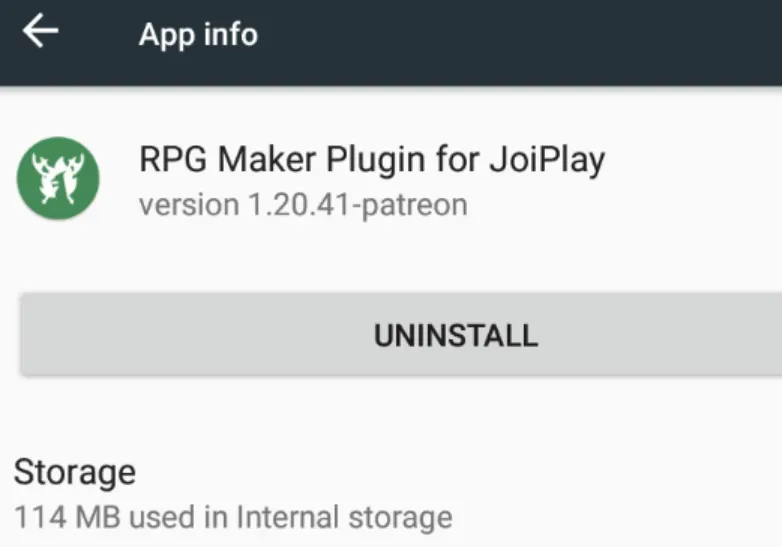
Step 2: Download the Game (v6.2.4)
Download the required game version using the link provided above.
Step 3: Download JoiPlay & RPG Maker
Download and install JoiPlay along with the RPG Maker Plugin from the provided source.
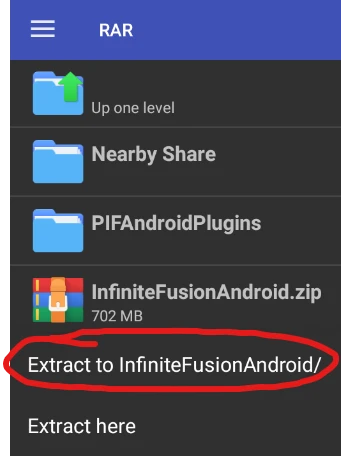
Step 4: Extract the Downloaded Files
- Install a RAR/ZIP extractor from the Google Play Store
- Open the extractor app and locate your downloaded files
- Extract both InfiniteFusionAndroid.zip and PIFAndroidPlugins.zip
Step 5: Install JoiPlay
Open your File Manager, locate the extracted PIFAndroidPlugins folder, and install the JoiPlay APK first.
Step 6: Install RPG Maker Plugin
After JoiPlay is installed, proceed to install the RPG Maker Plugin APK.
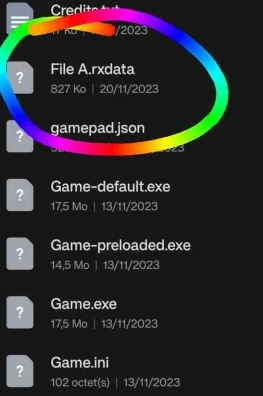
Step 7: Transfer Save Data (Optional)
- If this is your first-time installation, you can skip this step
- Returning players should move their save file named “File A.rxdata” into the main game directory
- Make sure the filename matches exactly, including spaces and capitalization
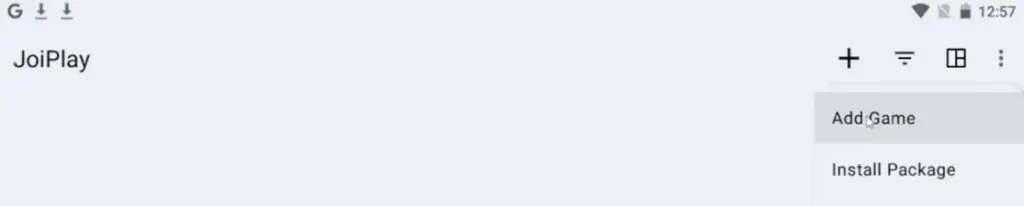
Step 8: Add the Game to JoiPlay
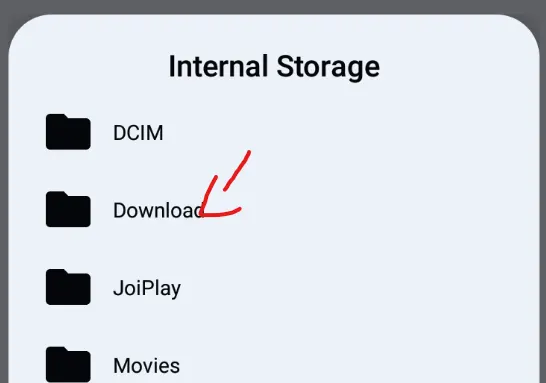
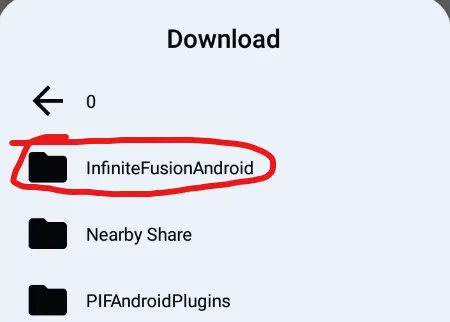
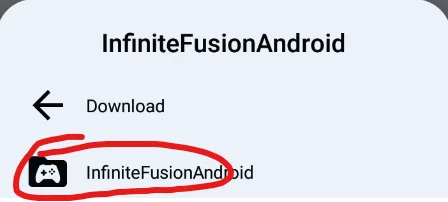
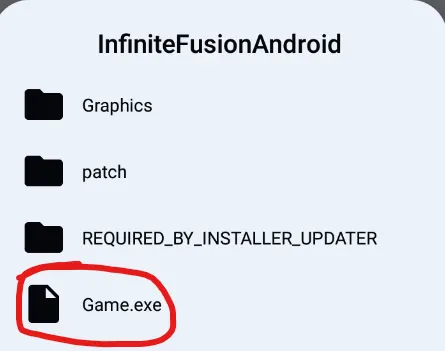
Open JoiPlay, tap the “+” icon, and choose Add Game. Browse to your InfiniteFusion folder, select Game.exe, then tap Choose to add the game to JoiPlay.
Step 9: Set Game Name and Version
Enter any name you like for the game. In the Version field, type 6.2.4.
Step 10: Launch the Game
Tap InfiniteFusion inside JoiPlay to start playing the game.

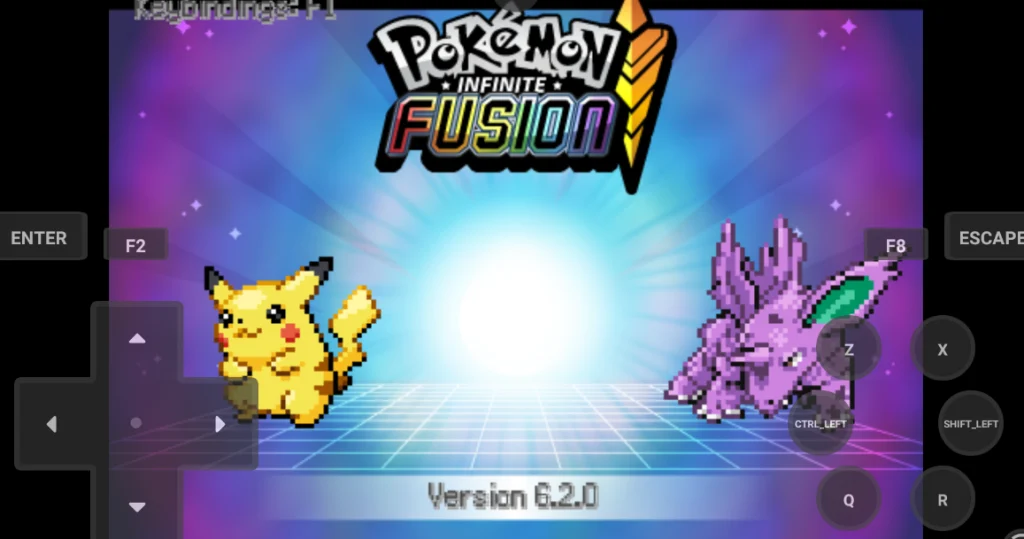
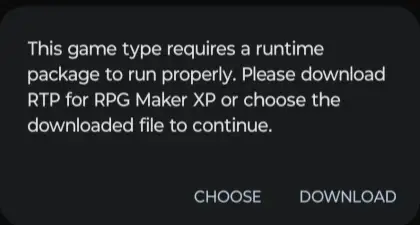
Important Note
After launching the game, press ESC to open the options menu and disable
Download Sprites. Save your changes and restart the game for the setting to apply properly.
How to Update the Game
Android does not support automatic updates for this game. To update manually, follow these steps:
- Rename your existing game folder to InfiniteFusionAndroidOld
- Download the latest game version from this guide and extract the files
- Copy your save files into the newly extracted folder
- Remove the old game entry from JoiPlay, then add Game.exe from the new folder
Common Issues and Fixes
1. HTTP Error
If you encounter this error, it usually means an incorrect or unofficial version of the game was installed. Uninstall JoiPlay and the RPG Maker Plugin, then reinstall everything using the files provided in this guide.
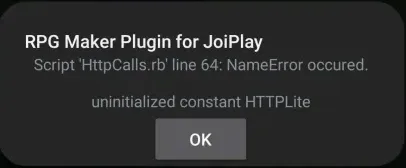
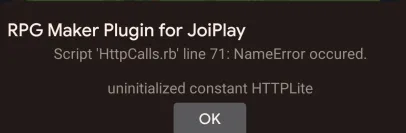
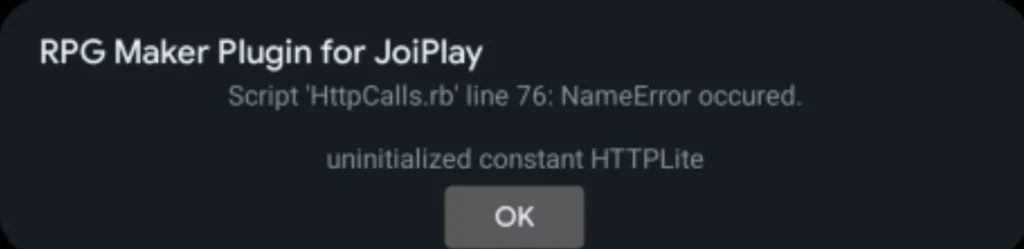
2. Compile Error: Game Not Supported
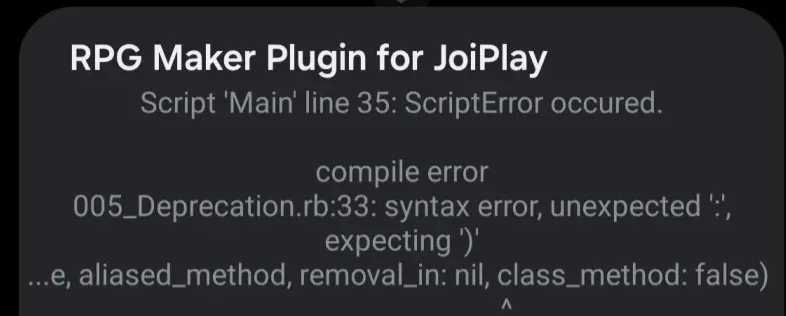
This error typically indicates that your device is not compatible. You can try changing the engine type to RPG Maker (mkxp-z) within JoiPlay settings. If the problem continues after doing so, it means your device is unable to run the game.
3. Elite 4/Pokémon League Fix
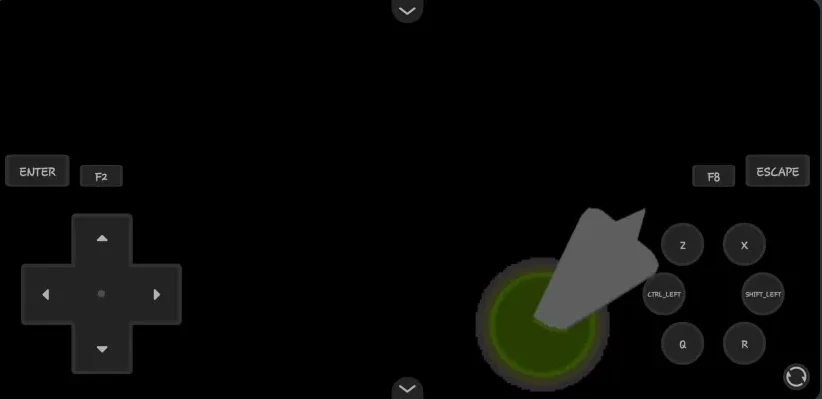
For game versions released after June 7, this problem should already be fixed. If you’re still experiencing it, uninstall your current RPG Maker Plugin and install the version that includes the Elite Four fix.
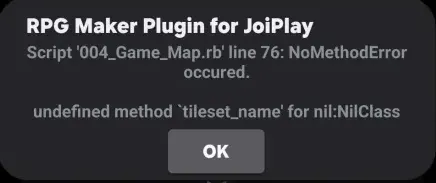
4. Map/Tileset Error
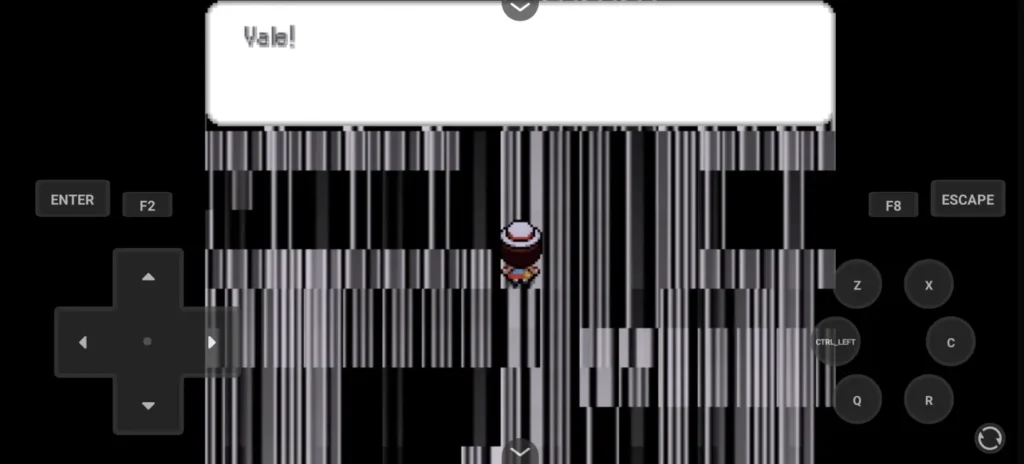
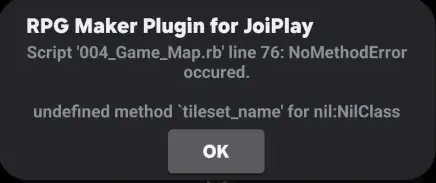
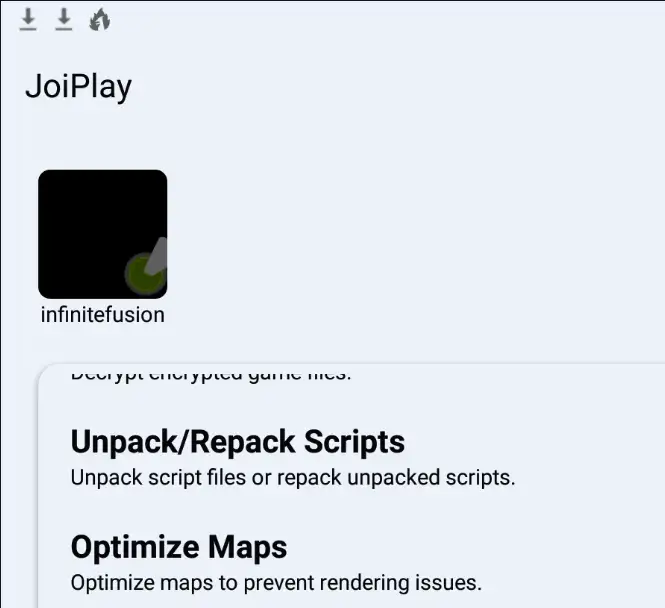
This issue may happen on devices that aren’t officially supported. You can try enabling map optimization in JoiPlay, but if the game continues to crash, it likely means your device is not compatible.
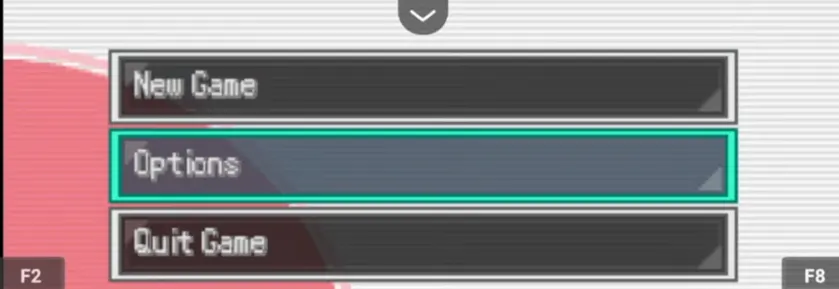
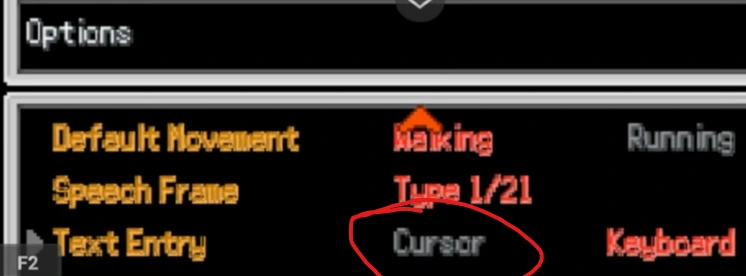
5. Typing Issues or Swapped Arrow Keys
Switch the Text Entry option to Cursor in the in-game settings.
6. Changing Controls
To customize the controls, open Gamepad Settings in JoiPlay from the top-right corner.